
Slack to SMS: A Step-by-Step Integration Guide
Explore our Slack-to-SMS integration guide. Discover how TextUs can help you turn Slack activity into meaningful SMS conversations.

Written by
Adam Hamdan
Published
November 27, 2026

A customer appointment gets rescheduled, a service request needs confirmation, or a sales prospect needs a quick follow-up.
These situations involve multiple communication tools, which creates additional work when employees have to transfer message details between systems.
With Slack and SMS integration, you can automate updates and receive notifications when customers respond, without requiring external contacts to join your workspace.
In this guide, we'll explore the benefits of connecting Slack with SMS and the different integration methods. You'll also learn how to send and receive SMS from Slack using the best text automation software.
TL;DR
- A Slack-to-SMS integration uses triggers to send text messages from Slack through an SMS provider, with options such as native apps, automation tools, and custom APIs.
- Connecting Slack to SMS allows you to reach external contacts, automate reminders and follow-ups, deliver urgent updates, and reduce the need to switch between communication tools.
- You can connect Slack to SMS through native texting apps, no-code automation tools, or custom API integrations.
- TextUs connects with Slack through Zapier to automate SMS workflows, send text messages, receive reply notifications, and manage customer conversations.
How Does Slack to SMS Integration Work?
A Slack-to-SMS integration connects workspace activities to an external texting service.
Triggers can include new messages in a designated Slack channel, mentions, a simple slash command, or selected notifications, depending on the integration.
You can establish this connection in several ways, including native Slack SMS apps, automation tools, and custom APIs. We'll discuss these integration methods in detail later in this article.
Regardless of the method, the SMS provider processes the request, sends the text from a configured business number to the recipient's phone, and tracks its delivery status.
Benefits of Connecting SMS to Slack
Slack brings employees together for internal collaboration. But customers, clients, and external partners may not have access to your workspace.
Integrating Slack with SMS bridges internal and external communication and offers several benefits:
- Reach customers and employees beyond Slack
- Deliver important updates straight to mobile phones
- Automate follow-ups, reminders, and repetitive tasks
- Cut down on switching between communication tools
With the right integration, you save time on routine communication while staying in touch with people outside Slack. This creates a more coordinated process for internal requests, external notifications, and follow-up conversations.
3 Ways to Connect Slack to SMS
There are three main ways to connect Slack with SMS, depending on your technical resources and how much control you need.
1. Use a Native Slack SMS Integration
Some business SMS providers offer dedicated Slack apps that allow you to send SMS messages directly from your workspace.
You can install the app, authorize your Slack account, connect a business texting number, and configure your messaging preferences.
These integrations may support contact lists, automated notifications, and customer conversations within Slack. Some also allow you to receive SMS replies, assign messages, and track communication history.
This method is ideal if you prefer texting features accessible within Slack rather than setting up separate automation workflows. However, features, permissions, and messaging costs vary by provider.
2. Connect Through a No-Code Automation Tool
No-code automation tools connect Slack with business texting platforms without programming knowledge.
Platforms such as Zapier and Make let you create workflows that trigger SMS based on specific events, such as new channel messages, mentions, or scheduled reminders.
Zapier + TextUs integration allows you to connect Slack activities with automated business texts.
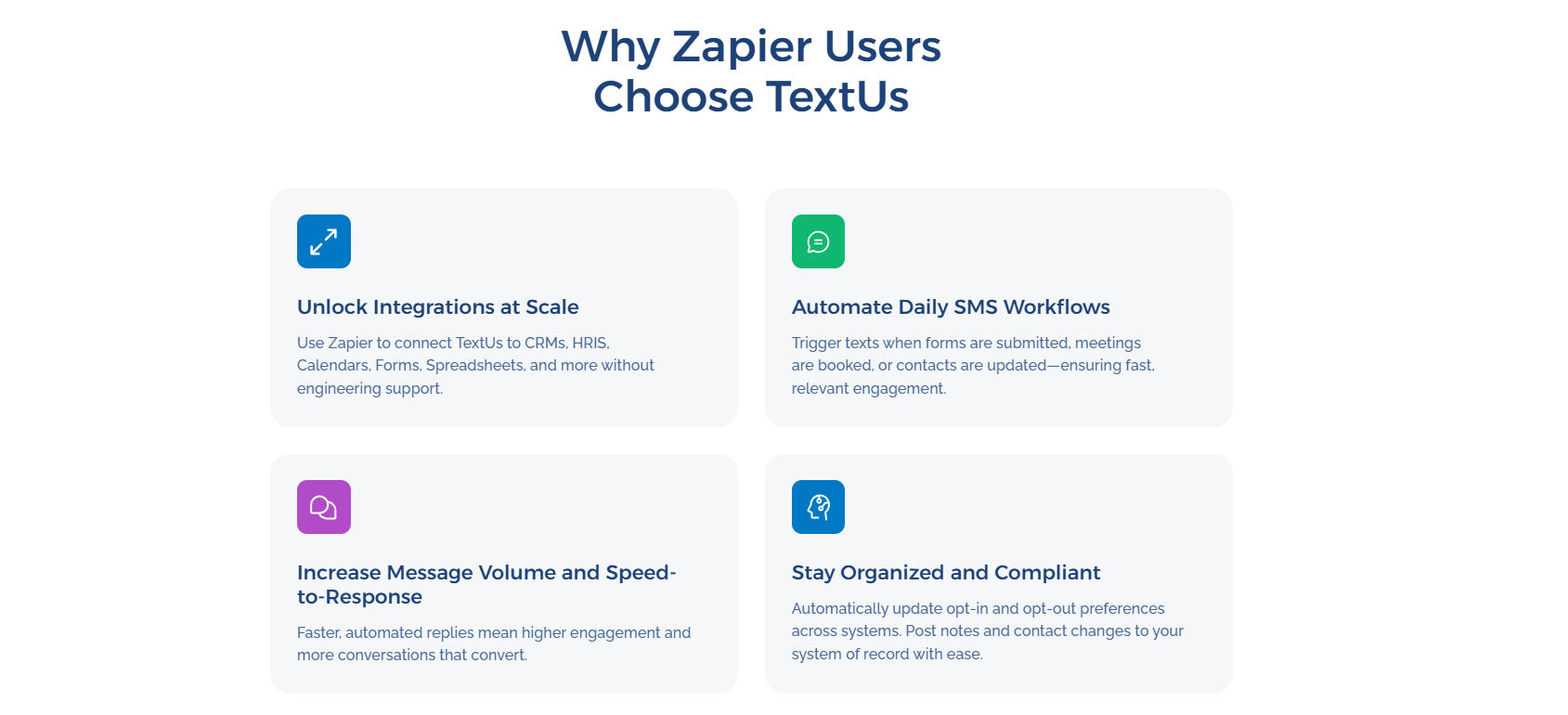
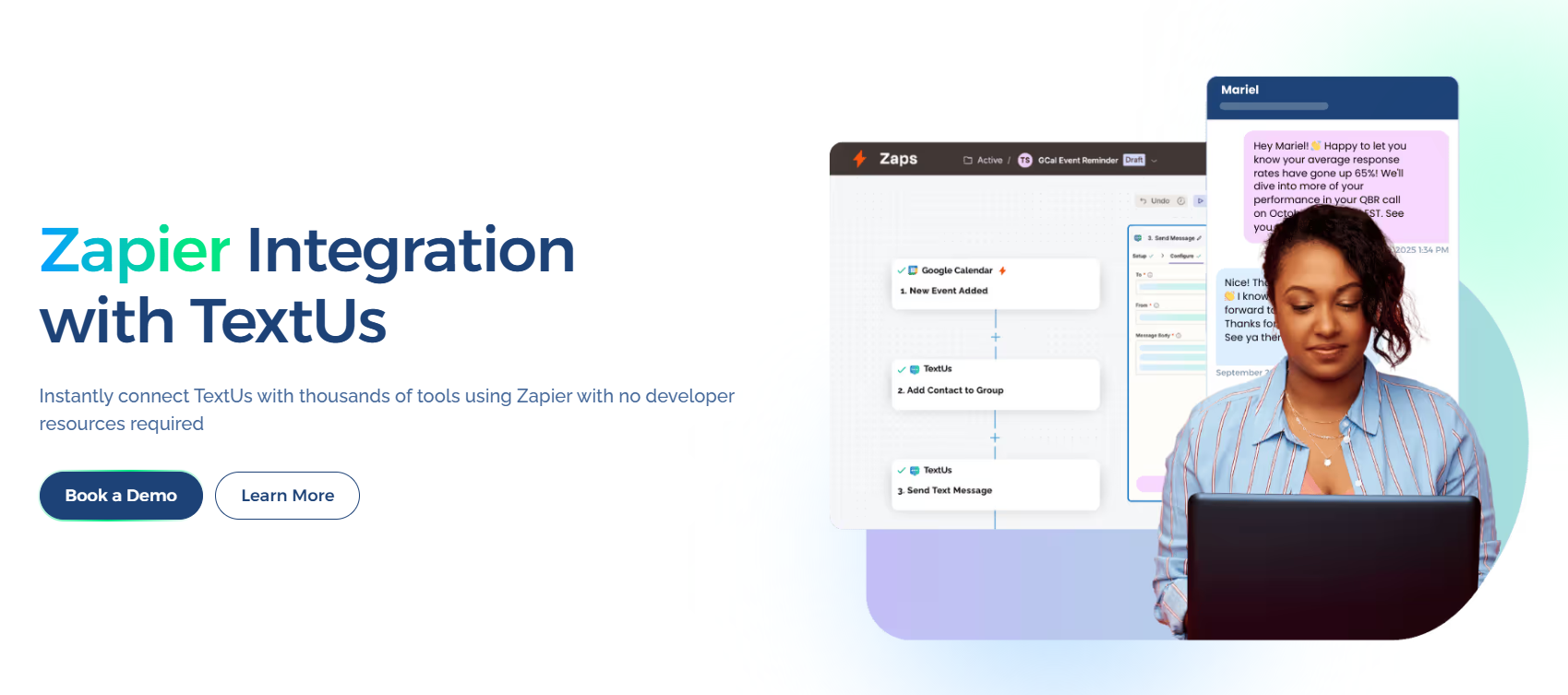
A new Slack message can trigger an SMS through TextUs, while incoming text messages received in the platform will generate Slack notifications through a separate workflow.
Beyond automated notifications, TextUs offers two-way messaging, shared inboxes, personalized campaigns, and automated follow-ups. These features support ongoing communication with customers and prospects after the initial text.
Ready to turn internal updates into real customer interactions? Book a demo with TextUs today!
3. Build a Custom SMS API Integration
A custom integration lets you connect Slack with an SMS API provider without relying on prebuilt apps or automation tools.
If you have developers, they can build a Slack app that responds to channel activity, direct messages, or commands and sends the message details to an SMS provider through its API.
This approach gives you more control over message triggers, recipient selection, and how data moves between systems.
You can also configure incoming replies, delivery notifications, and security controls based on your business requirements.
However, custom integrations require technical expertise, development resources, and ongoing maintenance. This option is suitable if you have specialized SMS workflows or existing systems that need a tailored connection.
How to Send SMS From Slack With TextUs and Zapier
Before you start sending texts, prepare the right accounts, permissions, and message settings to make sure your SMS workflow works as intended.
Here's how you can configure your Slack-to-SMS setup with TextUs and Zapier.
Step #1. Set Up Your Slack, Zapier, and TextUs Accounts
Before setting up the workflow, you need to connect TextUs to your Zapier account. This requires an organization admin account in TextUs and access to Zapier.
In Zapier, navigate to Apps > Connections > Add Connection, search for TextUs, and select the current version.
You'll need two credentials to complete the connection:
- API Key: Generate an API token through your TextUs organization admin account.
- Account Slug: Find this in your TextUs URL, such as next.textus.com/example-org/inbox/open, where example-org is your account slug.
Once both credentials are entered, select Yes, Continue to TextUs to authorize the connection. All messages sent through this connection will use the authenticated organization admin user.
Step #2. Connect Your Slack Workspace to Zapier
In Zapier, open Apps > Add Connection, search for Slack, and select Add Connection. You'll be redirected to Slack, where you can sign in and grant the requested permissions.
If your workspace restricts third-party applications, a Slack administrator may need to approve the connection.
Once authorized, Slack becomes available as an application in your Zapier workflows.
Step #3. Select and Configure a Slack Message Trigger
Each Zap starts with a trigger, which determines when an automated action occurs. For this workflow, select Slack as the trigger application and choose New Message Posted to Channel.
You can select a messaging channel where approved SMS requests are posted, then configure the conditions that activate the workflow.
For example, a Slack channel for customer appointment requests could trigger text reminders when new entries appear.
Zapier’s Filter step lets you limit the workflow to messages that meet specific conditions, such as a keyword or tag. This prevents unrelated Slack conversations from generating unwanted texts.
Step #4. Set Up the TextUs Send Message Action
After you configure the Slack trigger, the next step is to specify what happens when the trigger activates.
In the Zap editor, select Action, search for TextUs, and choose Send Message as the action event. Under Account, select the TextUs connection established earlier.
This action allows TextUs to send an SMS or MMS after an approved Slack event occurs.
Zapier will then display the required message fields, which you need to complete before you can test the workflow.
Step #5. Configure the Recipient Number and Message Content
The TextUs Send Message action requires three fields that determine where the message goes and what the recipient receives.
- To: The recipient's mobile phone number.
- From: The authorized business texting number.
- Message body: The text that TextUs will send.
You can map values from the Slack trigger into these fields. For example, a structured Slack request may contain a specific number and appointment details for an SMS reminder.
If the Slack message does not contain the recipient's phone number, your workflow will need another source, such as a contact lookup.
An optional media URL field also supports MMS content when applicable.
Step #6. Test and Activate Your Slack SMS Workflow
Before publishing the Zap, test the Slack trigger to confirm it retrieves the correct message information. Then test the TextUs action with an authorized test recipient.
Verify that the message reaches the intended phone number, uses the correct business number, and contains the expected content.
If the test fails, review the mapped fields, account permissions, and error details in Zapier before another attempt.
Once the workflow passes testing, publish the Zap to start sending texts whenever the configured Slack conditions are met.
Step #7. Set Up Incoming SMS Notifications in Slack
The outbound workflow handles texts triggered by Slack activity. A separate Zap can notify your team when customers text your business number through TextUs.
For this workflow, select TextUs as the trigger application and choose Message Received. Then add Slack as the action application and select Send Channel Message.
You can choose which Slack channel receives the notification and configure what message details appear in each alert.
This allows staff to receive texts as Slack notifications without having to check the TextUs inbox for every new response.
Turn Slack Activity Into Meaningful Conversations With TextUs
TextUs connects business texting with your existing tools, so outreach, contact records, and follow-ups remain connected throughout the communication process.
Through its Slack integration via Zapier, TextUs supports contact creation, group assignments, notes, and enrollment in automated SMS Sequences.
Integrating SMS with supported CRM and ATS platforms lets you maintain conversation histories within customer and candidate records.
TextUs also offers bulk SMS capabilities for targeted campaigns, scheduled messages, and reporting on delivery and response rates.
Whether you're reaching prospects, recruiting candidates, or contacting customers, you have more control over who receives your messages and how you measure results.
Why let important communication stop at Slack when you can reach people directly on their phones? Book a demo with TextUs today and build better connections with every conversation!
FAQs About Slack to SMS
How can I export text messages from a Slack channel?
Workspace owners and admins can export public channel messages through Admin > Workspace Settings > Security > Import & Export Data > Export. Access to private conversations depends on your Slack plan and approved permissions.
For complete SMS conversation records and performance metrics, you'll need to check the export and reporting features of your connected texting provider.
Can my boss read my Slack DMs?
Slack DMs are private from other employees by default. But authorized administrators may access them through approved exports or legal and compliance processes.
Personal conversations on a company workspace may therefore be subject to workplace policies.
Can Slack do voice-to-text?
Slack doesn't offer a built-in live dictation feature to compose messages by voice.
However, your device's speech-to-text tools, browser extensions, or third-party applications can convert spoken words into text within the platform.
Why use Slack instead of texting?
Slack supports internal collaboration through channels, file sharing, and team discussions. Business text messaging lets you reach customers, prospects, and employees without requiring an app or internet connection.
Instead of choosing one over the other, you can connect Slack with texting software to coordinate internal communication while maintaining external conversations.
Continue Reading



Frequently Asked Questions
Business Texting
Built for Results
Create and convert pipeline at scale through industry leading SMS software