
HubSpot SMS Marketing: Improve Your Outreach With CRM Data
Learn how HubSpot SMS marketing works once you integrate it with TextUs. Discover how text messaging can improve your HubSpot workflows.

Written by
Adam Hamdan
Published
March 23, 2026
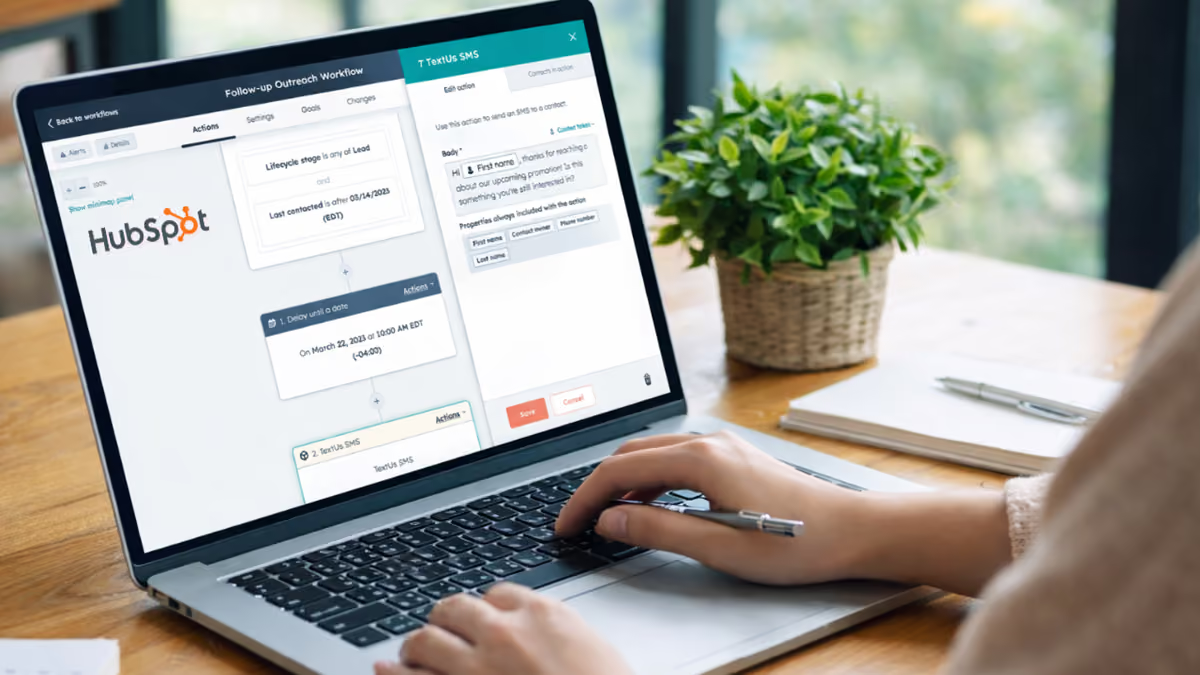
HubSpot SMS marketing allows you to add text messaging to your customer relationship management (CRM) system. Conversations happen where sales and marketing activity already exists.
Because HubSpot does not include native SMS messaging, a text marketing platform must be connected to enable texting from the CRM.
When SMS connects with HubSpot workflows, you can send personal messages at the moment a contact shows interest.
In this article, we'll explain how HubSpot SMS marketing works and learn how to set it up inside HubSpot. You'll also find SMS workflow examples you can use to support sales and customer engagement.
TL;DR
- HubSpot SMS marketing allows you to send automated text messages triggered by CRM activity.
- Workflows trigger text messages after key contact actions, such as form submissions, webinar attendance, email engagement, or list enrollment.
- To set up, you need to integrate the SMS marketing platform with HubSpot, enable the integration, configure message logging, create message templates, and add actions to HubSpot workflows.
- You can use SMS workflows for several outreach scenarios, including demo request follow-ups, event contact outreach, webinar engagement, and industry-based messaging.
- TextUs connects SMS messaging with HubSpot workflows and contact records, which allows two-way texting, automated outreach, and message history inside the CRM.
How HubSpot Workflows Support SMS Automation
A workflow runs when a contact takes an action such as filling out a form, joining a list, or opening an email. The system can then send a text message through an SMS tool connected to HubSpot.
Workflows allow you to send SMS messages using the contact information stored in HubSpot. A message can include the person’s name, company, or a meeting link.
Messages written with personal details look more like normal conversations. This approach often leads to more replies from your audience and better interaction with recipients.
HubSpot can also track actions like webinar attendance, email opens, and content downloads. A workflow can start after those actions and send a text message later.
SMS messaging works best when paired with HubSpot automation tools. Workflows connect contact data, forms, lists, and messaging into one system.
You can start personalized conversations through automation, then continue them through normal text replies inside the messaging inbox.
How to Set Up HubSpot SMS Marketing
Here are the steps you can follow to set up HubSpot SMS marketing and start sending automated text messages.
Step #1: Choose a HubSpot SMS Integration Tool
HubSpot does not include built-in SMS messaging, so the first step is choosing a platform that connects texting with the CRM.
The right texting tool supports a stronger SMS strategy and helps you communicate with prospects at the right moment.
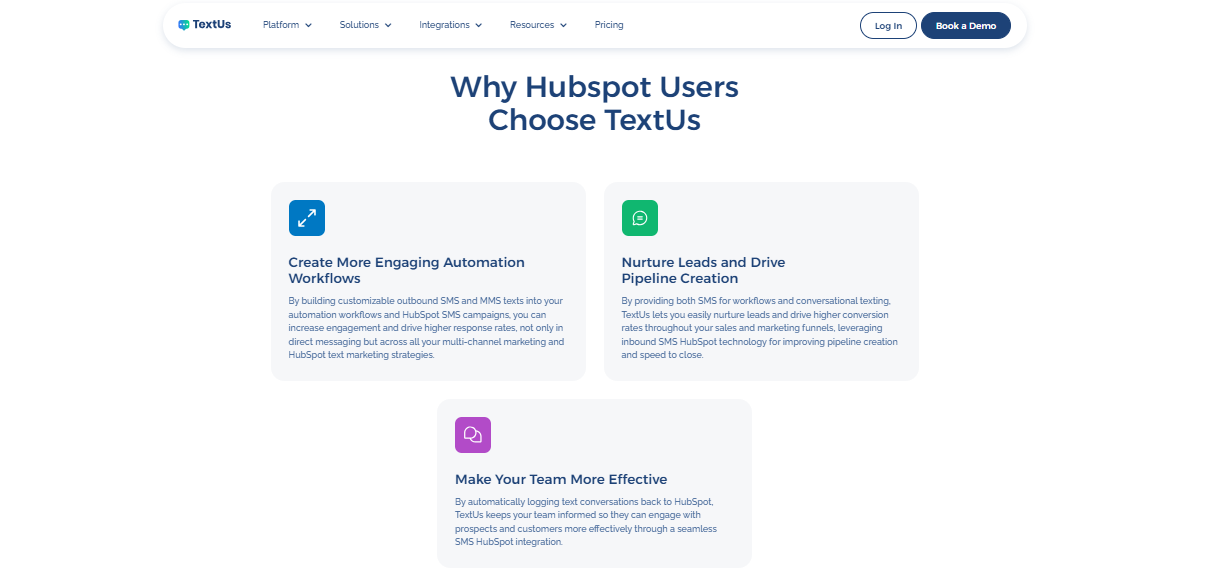
TextUs to HubSpot integration allows you to send SMS/MMS campaigns, create sales text templates, and add automated SMS actions inside HubSpot workflows.
Sales and marketing reps can start conversations with prospects quickly and respond to replies from the same messaging inbox.
It also records message activity inside HubSpot contact records. It keeps every text conversation tied to the contact profile and helps measure marketing campaign performance over time.
Fast responses improve the overall customer experience and keep conversations active.
Step #2: Enable the HubSpot Integration
Now, it's time to enable the HubSpot integration inside the TextUs platform. A TextUs admin should complete the setup so the integration has the correct account permissions and settings.
To connect TextUs with HubSpot:
- Log in to the TextUs web app using an admin account
- Click the user icon and open Accounts
- On the Accounts page, find the organization account and select View
- Open the Settings tab and choose Account Settings, then select Integrations
- Locate the HubSpot CRM integration and click Connect
- Select Authorize to begin the connection process
- In the browser window, choose the TextUs account that will connect to HubSpot
- Click the Connect app to grant TextUs access to the HubSpot account
Once the connection is complete, TextUs and HubSpot will be linked. You can then start building targeted SMS campaigns and adjust message content for maximum impact.
Step #3: Configure Message Logging Settings
Message logging records SMS conversations inside HubSpot contact records. To configure this, you have to:
- Return to the HubSpot CRM integration section in TextUs
- Click Manage
- Open the Message Logging tab
- Choose how messages will appear inside HubSpot. Messages can be logged as Tasks or SMS Activities
- Click Save to apply the settings
Once logging is active, every text conversation will appear inside the HubSpot contact timeline. This record can help teams review interactions and fine-tune future campaigns.
Step #4: Create Message Templates
Templates allow you to prepare common SMS marketing messages that sales reps and marketing staff can send quickly. They also keep messaging consistent when contacting prospects and customers.
You can create templates for common situations such as demo confirmations, appointment reminders, event follow-ups, and lead outreach. These templates can support promotions, time-sensitive offers, or other campaigns.
Teams can also adjust the message format to match the campaign. For example, a message can reference a meeting date or include important event details.
You can also include personalization fields from HubSpot contact data. These fields can insert information such as the contact’s name or your business name, which makes the message look more conversational.
Step #5: Add SMS Messaging to HubSpot Workflows
There are a few setup conditions that must be in place before SMS messages can be sent through HubSpot workflows.
Before adding SMS actions, a few setup items must be in place. Each contact enrolled in the workflow must have a Contact Owner assigned in HubSpot.
The Contact Owner must also exist as a user in the TextUs account so the system knows who will send the message.
Users who have access to more than one TextUs messaging account must select a default account in their TextUs profile. The contact’s phone number must also be valid and able to receive text messages.
Once the requirements are complete, SMS messaging can be added as an outbound action inside a HubSpot workflow. You can follow these steps:
- Open HubSpot and select the Workflows tab from the top navigation menu
- Find an existing workflow and choose Edit or Clone
- Click the plus icon to add a new workflow step
- In the action menu, search for TextUs SMS and select it
- Enter the text message you want to send in the Body field
- Add contact tokens, such as First Name, to personalize the message
- Click Save
When the workflow runs, the SMS action will send the automated message to the contact. If the contact replies, the response will appear inside the TextUs messenger.
4 HubSpot SMS Marketing Workflow Examples
Here are several common HubSpot SMS marketing workflow examples you can use to start conversations and follow up with prospects.
1. Send Text Messages After Demo or Contact Requests
Fast outreach helps your business communicate with prospects while interest is still high. Early responses lead to stronger conversion rates during the customer journey.
When a visitor submits a demo request or contact form on your site, a workflow can send a text message inviting them to schedule a demo. The message should greet the contact after confirming they agreed to receive text messages.
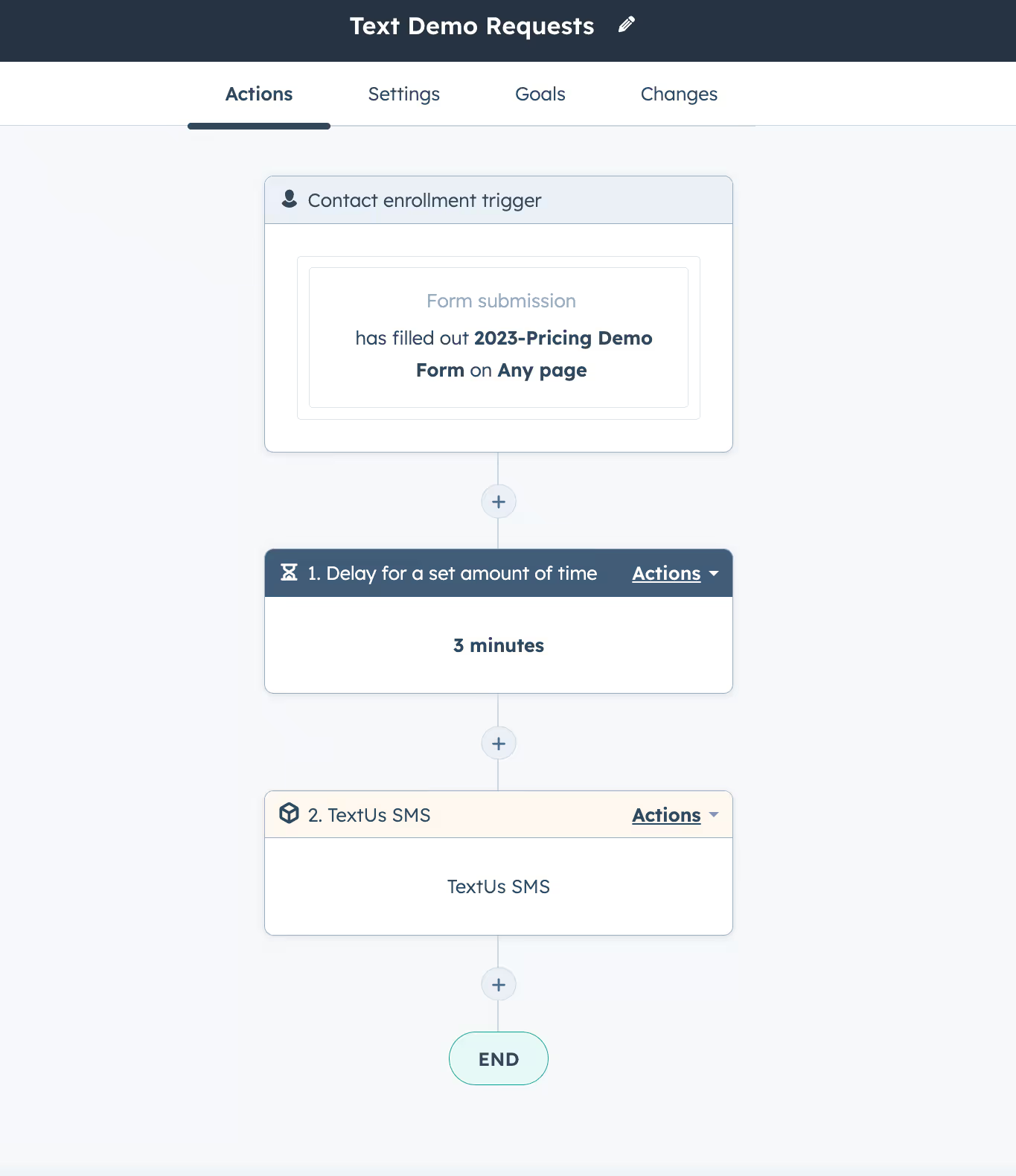
This is one of the easiest SMS workflows to create in HubSpot. Simply:
- Create one or more demo SMS templates that thank the prospect for their request and include a meeting link.
- Create a workflow in HubSpot that starts after a demo form submission. The form should include a checkbox field that allows the contact to opt in to receive text messages.
- Set a short delay before the message is sent. Many companies send the text within five minutes of the form submission.
- Add the TextUs SMS action to the HubSpot workflow and choose the welcome SMS template or write a new message.
- Save the workflow and monitor message activity to confirm everything runs as expected.
Once the message is delivered, the contact can reply with the best time to meet or schedule a call through the calendar link.
The reply appears in the TextUs inbox, where you or another member of your sales staff can continue the conversation.
2. Create SMS Follow-Ups for In-Person Events
HubSpot allows easy CSV uploads, which makes follow-up after in-person events much easier. After uploading event contacts, you can use the list as a trigger for workflows that send SMS follow-ups.
To set up this SMS workflow, you should:
- Upload contacts from the event into HubSpot. Include First Name, Last Name, Email, Company Name, and any notes from the conversation.
- Create a workflow that starts from a HubSpot list that contains those contacts.
- Add a delay of a few days so prospects can return to their normal schedule after the event.
- Create an SMS template that shares content or next steps, and include a message letting the contact know they can opt out at any time.
Only contacts who opted into messaging should receive SMS follow-ups.
3. Follow Up Based on Email and Webinar Engagement
SMS is a great way to follow up after you have an online event, such as a webinar or large content piece, and want to continue to engage your new subscribers.
- Use HubSpot’s Zoom or GotoWebinar integration to detect who not only registered, but also attended the event.
- Create a workflow centered on the event, a list of attendees, or some other action.
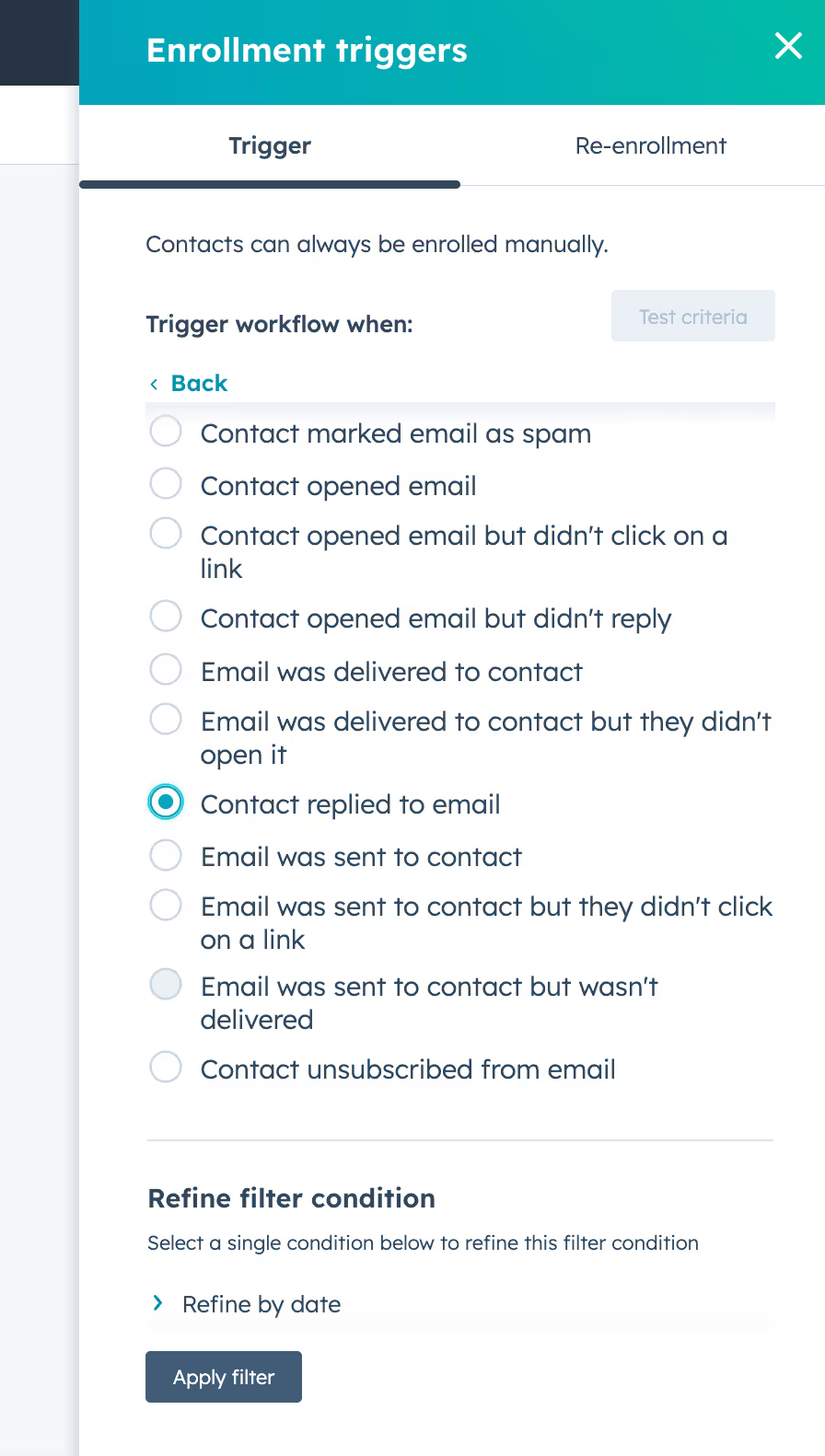
- Add a delay for a set amount of time after the event (e.g., two hours or one day). Add an action to “Send SMS” and select your event follow-up template.
- Send an SMS about the report, asking if they have questions or would like to see more content/demo.
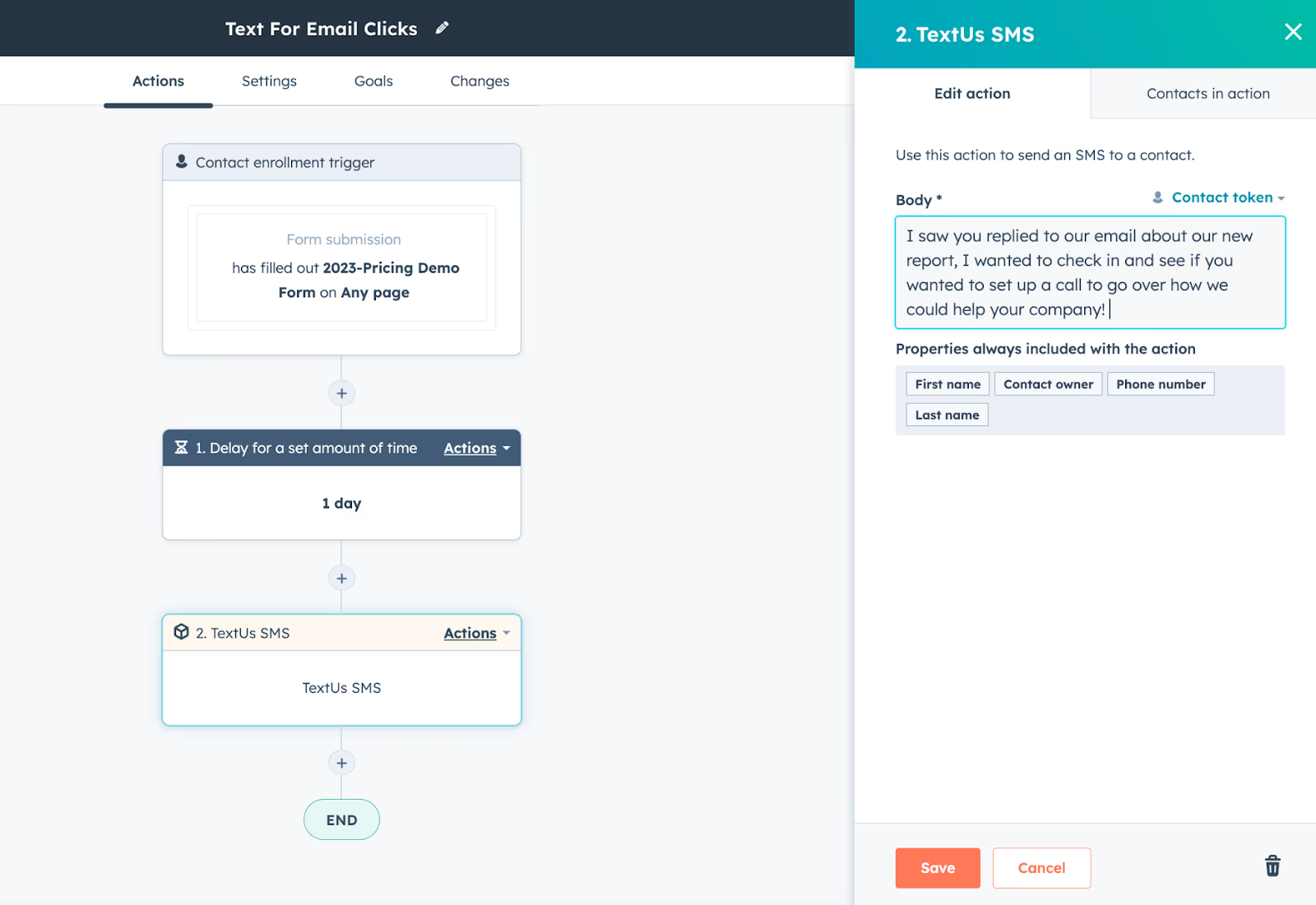
Following up after an online event like a webinar can engage leads and customers. It also supports campaign success and can help drive sales through continued outreach.
4. Create Personalized Outreach for Customer Segments
HubSpot SMS workflows allow you to group contacts based on shared characteristics and send messages written for that group.
For example, if you want to reach a specific industry, you can create a list that collects all prospects from that industry, such as healthcare. This method supports more personal outreach because the message can speak to the needs of that group.
To create a workflow that targets specific user groups:
- Create a HubSpot list that captures contacts from the industry you want to target. (You may need a data tool such as ZoomInfo to gather detailed industry information.)
- Create a workflow with a contact enrollment trigger based on list membership.
- Add a Send SMS action and select the outreach template you want to send to that group.
Bring Text Messaging Into Your HubSpot Workflows With TextUs
Strong customer conversations start with the right communication channel.
TextUs allows your team to connect texting with CRM data, workflows, and sales outreach without switching platforms.
Sales reps can send and receive text messages from HubSpot contact records, while marketing staff can add SMS actions to automated workflows for faster follow-up.
Prospects who request demos, attend events, or download content can receive a text message within minutes. Replies appear inside the TextUs messenger, which allows your team to continue the conversation and reach global audiences.
If you use HubSpot and want to add texting to sales and marketing communication, TextUs makes HubSpot SMS marketing simple to manage.
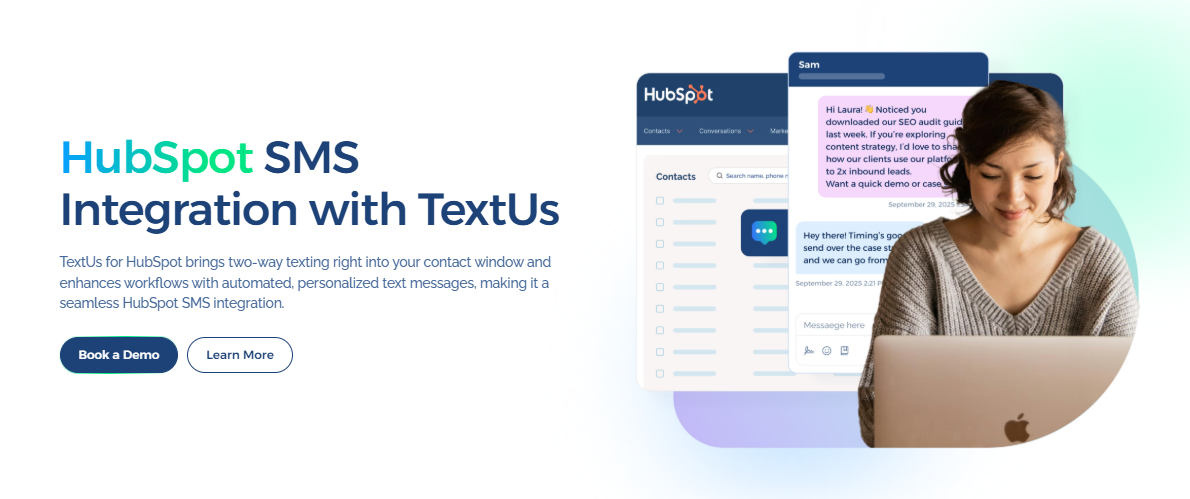
Book a demo with TextUs today to see how text messaging can support customer outreach and CRM-based communication!
Continue Reading



Frequently Asked Questions
Does HubSpot have built-in SMS marketing?
HubSpot does not offer SMS messaging on its own. You need to connect an SMS platform that integrates with HubSpot to send and receive text messages.
Many businesses find SMS integrations through the HubSpot Marketplace, which lists tools that connect texting with a HubSpot instance.
What is the best SMS integration for HubSpot?
Several SMS marketing platforms integrate with HubSpot, but TextUs stands out as it connects texting with HubSpot workflows, contact records, and sales outreach.
This platform allows users to send two-way text messages, automate SMS actions in workflows, and view conversation history inside HubSpot contact timelines.
How much does HubSpot SMS marketing cost?
The cost of HubSpot SMS marketing depends on the method you use. HubSpot offers customized SMS pricing as a marketing add-on for Marketing Hub Professional and Enterprise.
You should review the costs from the platform you choose to understand total SMS marketing pricing.
Business Texting
Built for Results
Create and convert pipeline at scale through industry leading SMS software